
LiGo's Chrome extension allows you to create personalized post style packs that ensure your generated LinkedIn content maintains your authentic voice. This guide will show you how to set up custom post styles that align with your personal or brand voice.
Ce que vous apprendrez
- How to access the Post Styles section
- Creating and naming custom post styles
- Adding example posts to train the AI
- Paramètres de style préférés
- Managing multiple post styles
- Setting a default style for content creation
Accès aux préférences de style
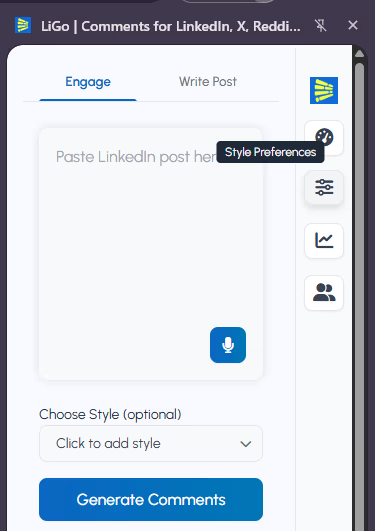
To begin creating custom post styles:
- Cliquez sur l’icône de l’extension LiGo dans votre navigateur
- When the sidebar opens, click on the "Style Preferences" located on the right
- The Style Preferences page will open in a new tab
- Select the "Post Styles" tab in the menu
Accès alternatif : You can also find Style Preferences in the web app by going to the extension settings and selecting the Styles section.
Creating a New Post Style
To create a custom post style:
- Click the "Create a Style" button
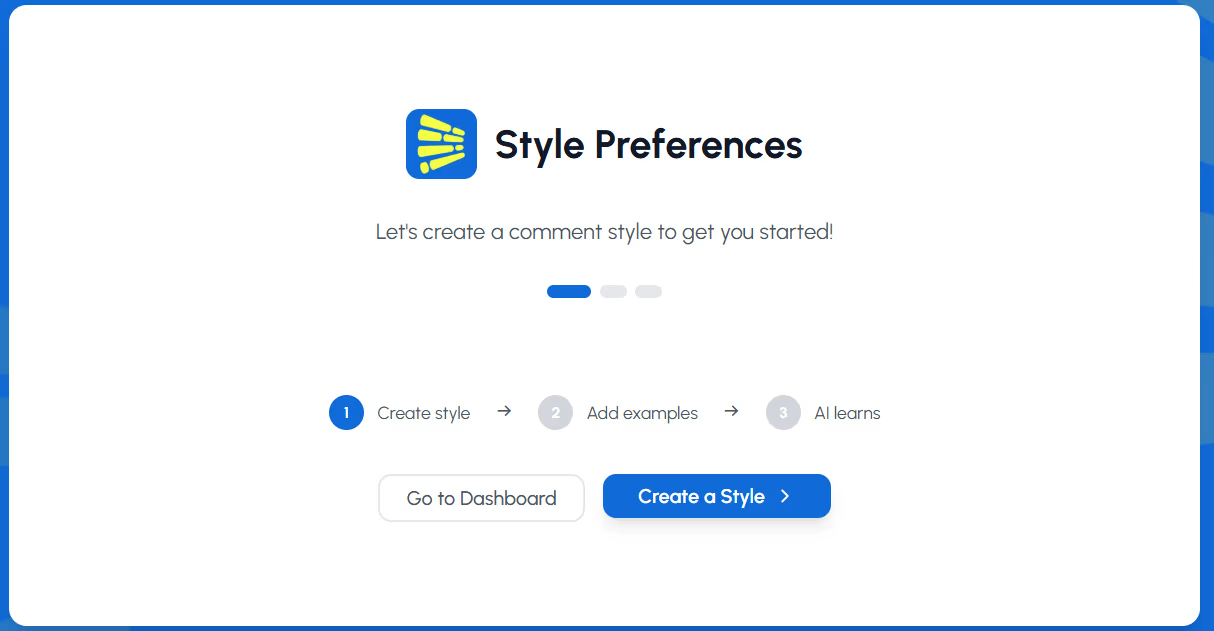
- In the popup dialog, enter a descriptive style name (e.g., "Thought Leadership" or "Case Studies")
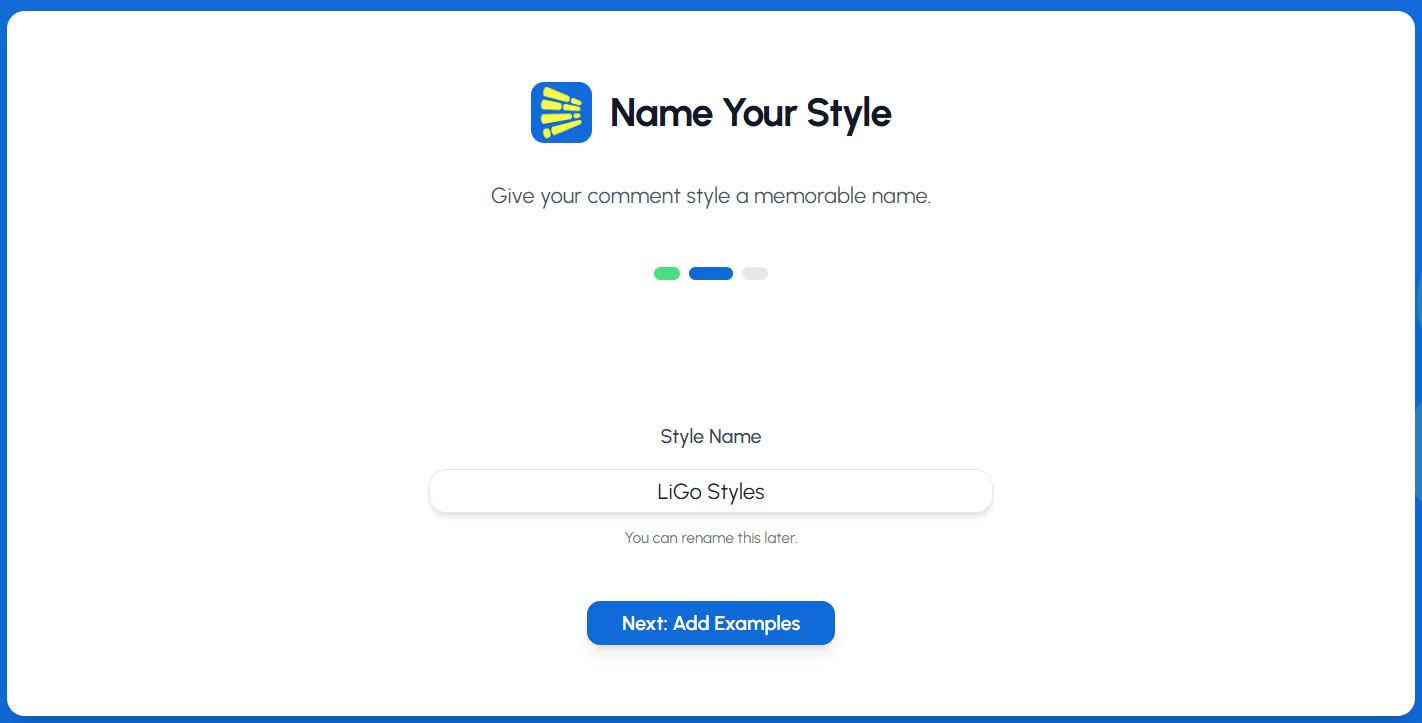
- Click "Next: Add Examples"
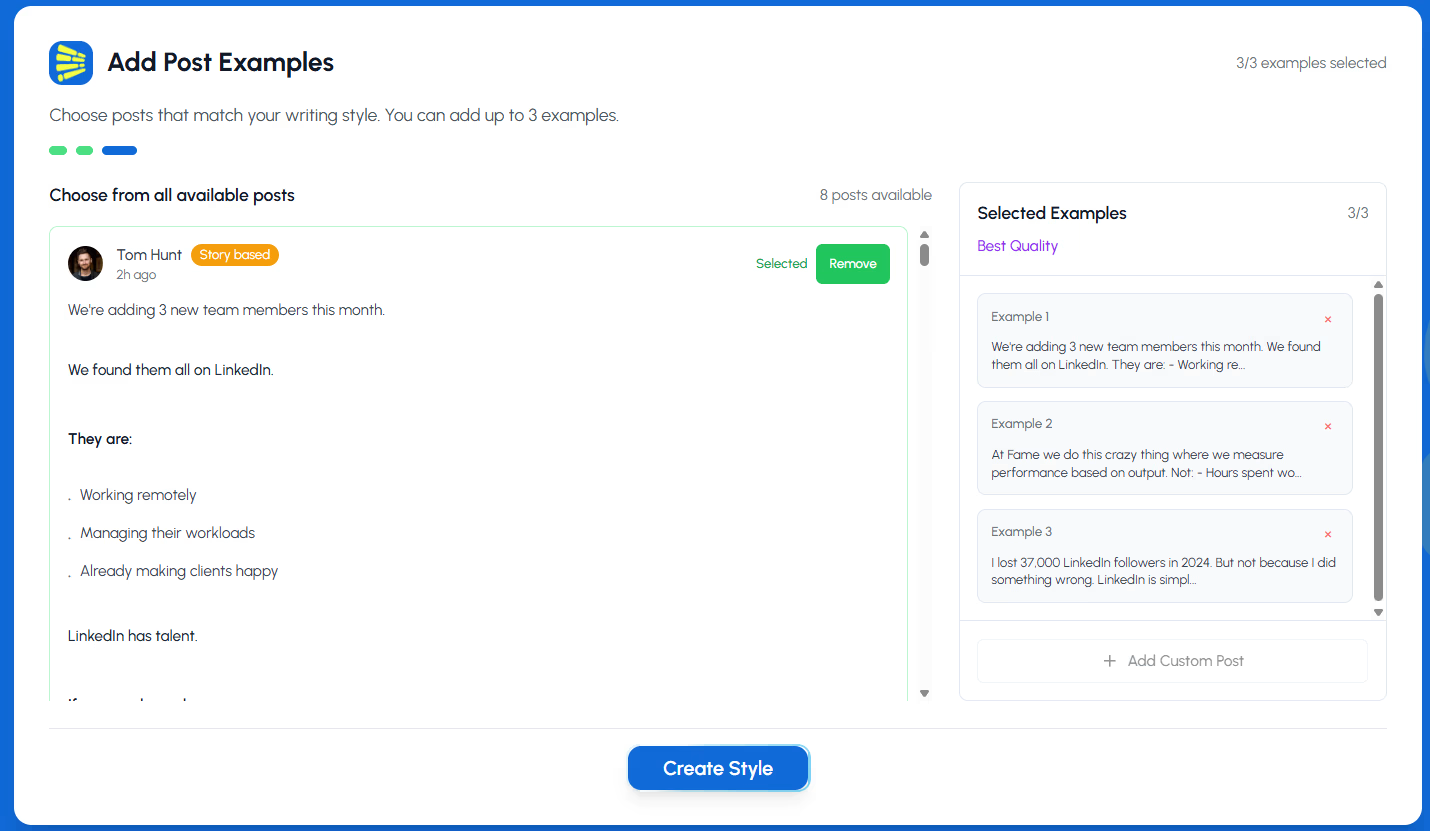
You will then be prompted to choose upto 3 example posts that reflect your thoughts and writing style. Once chosen, hit the "Create Style" button
Conseil de pro : Create different post styles for different content purposes. For example, you might want one style for sharing industry insights, another for company updates, and a third for personal achievements.
Personnalisation des fonctionnalités de style
For each post style, you can toggle specific features:
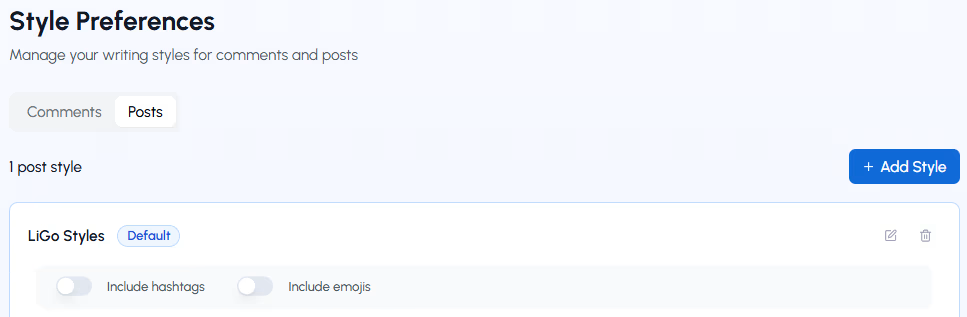
Inclure des emojis
- Toggle ON to allow the AI to incorporate appropriate emojis in generated posts
- Désactivez le bouton DÉSACTIVÉ pour une approche plus formelle, uniquement textuelle
Inclure des hashtags
- Toggle ON to automatically include relevant hashtags in your posts
- Toggle OFF for cleaner posts without hashtags
Note: These toggles help shape the overall tone of your generated posts while maintaining your core voice and style.
Adding Example Posts
La clé pour créer un style efficace est de fournir de bons exemples. Il y a deux façons d’ajouter des exemples :
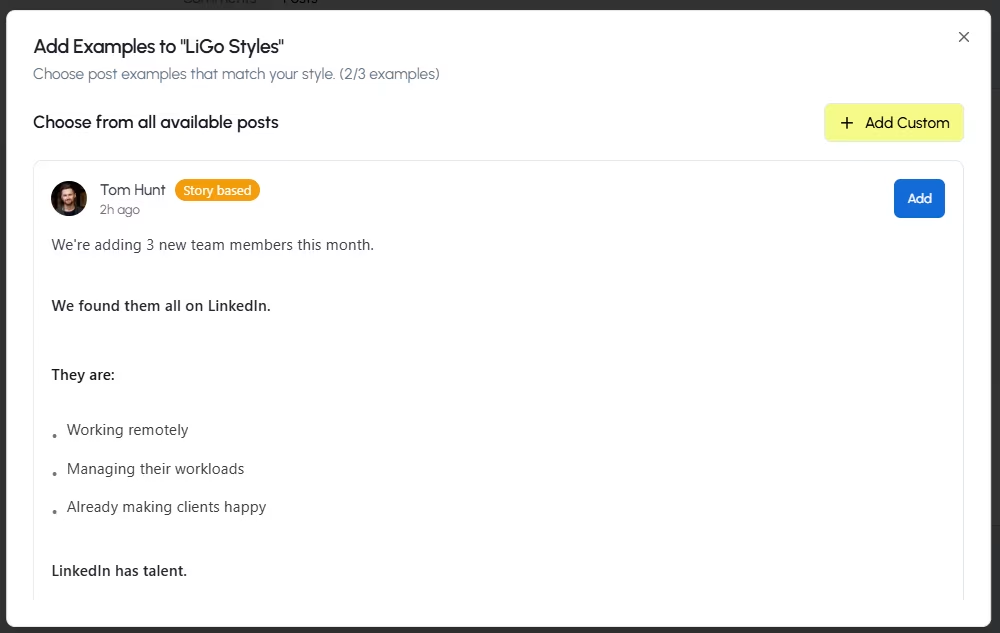
Méthode 1 : Ajoutez vos propres exemples
- Cliquez sur « + Ajouter un exemple » dans votre carte de style
- In the dialog box, enter or paste an example post that represents your preferred style
- These can be your own previous LinkedIn posts or content that matches your ideal style
- Cliquez sur « Ajouter » pour enregistrer l’exemple
Method 2: Choose from LiGo's Library
- Click "+ Add Example"
- In the "Help us learn your preferred style" dialog, scroll down to "Or Choose from Our Examples"
- Browse examples by category using the dropdown filter
- When you find a post style you like, click the "+" button to add it to your style
Qu’est-ce qui fait un bon exemple ?
- Posts that reflect your authentic voice and content structure
- Examples showcasing your typical hook style, paragraph structure, and closing approach
- Different content types you regularly post (stories, lists, questions, insights)
- Posts that have performed well with your audience
Conseil de pro : Include at least 3-5 diverse examples for each style to give the AI enough data to understand your preferred approach.
Managing Example Posts
Après avoir ajouté des exemples, vous pouvez :
- Modifiez n’importe quel exemple en cliquant sur l’icône du crayon
- Supprimez les exemples en cliquant sur l’icône de la corbeille
- Ajoutez d’autres exemples si nécessaire
- Cliquez sur « Afficher plus d’exemples » pour voir tous les exemples dans votre style
Note: The AI's understanding of your style improves with each example you provide. Consider adding more examples over time, especially if you notice the generated posts aren't fully capturing your voice.
Définir un style par défaut
To make a particular style your primary option:
- Click "Make it default" on the style card you want to use most frequently
- The selected style will be automatically used when generating posts through the extension
Vous pouvez changer votre style par défaut à tout moment en sélectionnant « Rendre par défaut » sur une carte de style différente.
Utilisation de styles multiples
You can create various post styles for different content strategies:
- Educational style for how-to and informational content
- Storytelling style for case studies and personal experiences
- Engaging style focused on questions and audience interaction
- Authoritative style for industry insights and thought leadership
Switch between styles when generating posts by selecting the appropriate style in the extension interface.
Conseils de performance stylisée
To get the most authentic posts:
- Include your best work: Add examples of posts that performed well and that you're proud of
- Vary your examples: Include different post structures, lengths, and topics
- Mise à jour périodique : As your content strategy evolves, update your style examples
- Pay attention to hooks: Include examples with strong opening lines that match your style
- Consider format preferences: If you tend to use lists, questions, or other specific formats, ensure your examples reflect these
How Post Styles Appear in the Extension
When using the LiGo Chrome extension to create LinkedIn posts:
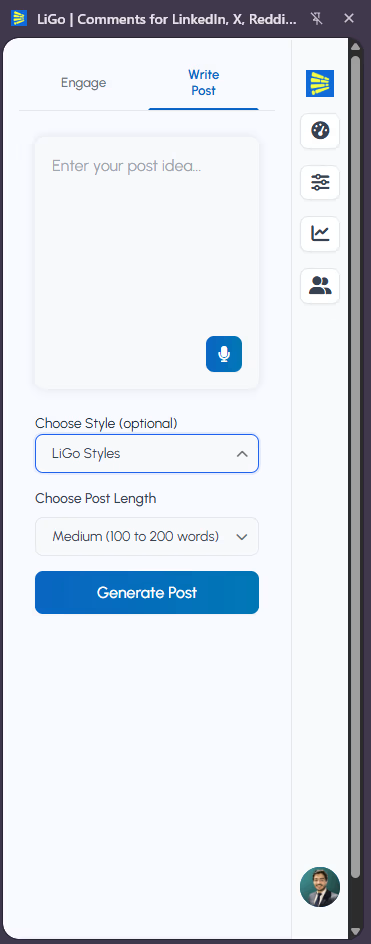
- Click the extension icon to open the sidebar
- Select the "Write Post" tab
- Enter your post idea or content
- Select post style (Optional)
- Choose Post Length
- Click "Generate Posts"
- The extension will show multiple options:
- 3 in your custom style (labeled with your style name)
- 3 in LiGo's optimized style
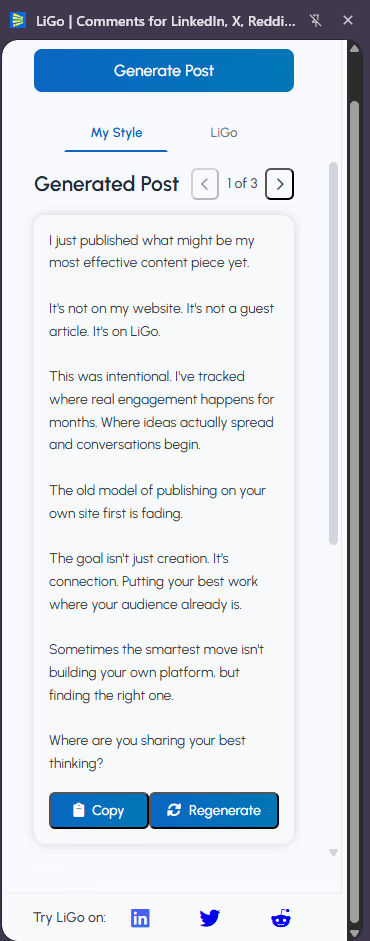
Conseil de pro : Your default style determines which custom style is used for the "your style" variants. This gives you the best of both worlds-posts that sound like you, plus optimized alternatives.
Conseils pour l’organisation du style
For effective post style management:
- Create purpose-based styles: Organize styles by content purpose rather than tone
- Name styles meaningfully: Use descriptive names that help you remember each style's purpose
- Limit active styles: Focus on 2-3 core styles to avoid confusion
- Archive unused styles: Instead of deleting styles you no longer use, consider keeping them for reference
Refining Your Styles Over Time
As you use the extension, you may want to refine your styles:
- Monitor generated posts: Pay attention to which posts sound most like you
- Add successful posts: When you create a post you're particularly satisfied with, add it as an example
- Remove outliers: If certain examples are creating inconsistent results, consider removing them
- Adjust toggles: Experiment with emoji and hashtag settings to find your preferred balance
Questions fréquentes
How many examples should I include in each post style?
Commencez par 3 à 5 exemples par style. Vous pouvez en ajouter plus au fil du temps pour affiner la compréhension de votre voix par l’IA. Le minimum est 1, mais plus d’exemples donnent de meilleurs résultats.
Should my post examples be the full post or just snippets?
Include complete posts whenever possible. The AI learns from the structure, hook, body, and conclusion of your posts.
Can I use content from other platforms as examples?
Yes, but LinkedIn posts have a specific format and tone. For best results, use your actual LinkedIn posts or content specifically formatted for LinkedIn.
What's the difference between post styles and content themes?
Post styles affect the voice, tone, and structure of your content, while content themes determine the topics and subject matter. Using both together creates the most targeted content.
Comment savoir si mon style fonctionne bien ?
Generated posts should sound like you wrote them. If they feel off or use phrases you wouldn't normally use, add more examples or modify existing ones.